


Blog
PC Repair Basics: Common Computer Issues and Easy Fixes (2025 Guide)

PC Repair Basics: Common Computer Issues and Easy Fixes (2025 Guide)
A Quick Guide By Variety Infotech – Where Tech Meets Excellence

Your PC Is Running Slow
Common Issues:
Too many startup apps launching automatically
Low storage space on your drive
Resource-heavy background processes
Old or failing hard drive
Virus or malware infection
Quick Fixes:
Disable unnecessary startup applications
Clean up storage space using Disk Cleanup
Uninstall unused software programs
Upgrade HDD to SSD
Run antivirus scan
Solution:
Start by opening Task Manager (right-click taskbar) and going to the Startup tab. You’ll likely see 20-50 programs set to launch when Windows boots. This is your first performance killer. Disable anything you don’t actively need—Spotify, Dropbox syncing, printer utilities, none of these should run at startup.
Next, check your storage. Open File Explorer, right-click your C: drive, and check free space. If you’re below 10% capacity, Windows itself can’t function properly. Use the built-in Disk Cleanup tool (search in Start menu) to remove temporary files. On Windows 11, Storage Sense is even more effective.
If your drive is more than 5 years old and still uses traditional spinning platters (HDD), that’s your real problem. Upgrading to a 256GB SSD (around ₹2,500-3,000) will make your computer feel brand new. SSDs are dramatically faster at handling multiple file requests simultaneously.
Your PC Won’t Boot
Common Issues:
Loose power cable connections
Faulty or improperly seated RAM
Power supply failure
Corrupted Windows installation
Wrong boot device selected
Quick Fixes:
Check all power connectors
Reseat RAM sticks (one at a time)
Select correct boot drive in BIOS
Run Windows Automatic Repair
Test with one RAM stick only
Solution:
Don’t panic—nine times out of ten this has a simple fix. Start with the obvious: power cable. Make sure it’s firmly plugged into both your PC and the wall outlet. I’ve solved “PC won’t start” problems just by reseating the power cable. Check your PSU’s rear switch too—sometimes it accidentally gets switched off.
If lights come on but you get a black screen, reseat your RAM. This is more common than you’d think. Power off completely, unplug everything, open the side panel, and look for the RAM sticks. Press down the clips on the sides, pull each stick straight up, and firmly push them back in. Try one stick at a time if you have multiple. A single faulty RAM module or improperly seated stick is the #1 cause of “no boot” problems.
If you still get nothing, try using your motherboard’s built-in video output (if your CPU has integrated graphics) instead of a dedicated GPU. Some graphics card failures prevent display output while the system still runs.
Your Computer Is Overheating or Fans Are Loud
Common Issues:
Dust accumulation blocking airflow
Dried-out thermal paste on CPU
Poor case airflow design
Failing cooling fans
High ambient room temperature
Quick Fixes:
Clean PC fans and vents with compressed air
Replace thermal paste on CPU
Add case fans for better airflow
Remove dust filters and clean them
Ensure intake and exhaust fan balance
Solution:
Dust is the silent killer of PC performance. Over months and years, dust coats your fans, heat sinks, and filters. Your system can’t dissipate heat properly, temperatures spike, and fans spin faster trying to compensate—creating a vicious cycle of noise and heat.
Clean your PC thoroughly. Turn it off, unplug everything, open the side panel, and use compressed air to blow dust out. Target the CPU cooler, GPU cooler, power supply, and case fans. Do this outside if possible—the dust cloud can be impressive.
While you’re inside, check your thermal paste. That’s the gray compound between your CPU and cooler. If your PC is 3+ years old and CPU temps exceed 70°C under load, the paste has probably dried out. Remove the cooler, clean old paste off with isopropyl alcohol, apply new thermal paste (pea-sized amount in center), and remount.
Check your case airflow: intake fans (front/bottom) should pull air in, exhaust fans (rear/top) should push air out. If you’re only relying on the power supply fan for exhaust, add two 120mm case fans (₹300-500 each). Proper airflow makes a massive difference.
Your Monitor Shows Nothing but Black
Common Issues:
Loose GPU or RAM
Faulty display cable
Wrong video output selected
Graphics card failure
BIOS reset needed
Quick Fixes:
Reseat graphics card and RAM
Try different HDMI/DisplayPort cable
Check monitor input source
Test with onboard video output
Clear CMOS battery
Solution:
First, check your cables. Make sure your monitor cable (HDMI, DisplayPort, or DVI) is plugged into the correct output. If you have a dedicated GPU, ensure the cable goes there, not to the motherboard’s video port. This simple mistake causes more confusion than anything else.
Try a different cable if available. HDMI cables go bad more often than people realize, especially if bent or stepped on repeatedly.
Reseat your graphics card. Power off, unplug, open the case, and firmly reseat both your GPU and RAM. Sometimes components shift slightly during transport or years of use, causing connection issues.
If still no display, try using your motherboard’s built-in video output. If you get display output, your graphics card is the problem.
As a last resort, try clearing your CMOS. The CMOS battery is a small coin-cell on the motherboard. Power off, unplug, remove the battery for 10 seconds, and replace it. This resets BIOS settings to factory defaults and sometimes resolves display issues.
Your Internet Keeps Dropping or Is Painfully Slow
Common Issues:
WiFi signal interference
Old or faulty router
Outdated network drivers
Background downloads (Windows Update)
ISP or modem problems
Quick Fixes:
Restart your router
Switch to 5GHz WiFi band
Update network drivers
Pause Windows Updates
Use Ethernet cable instead
Solution:
If you’re on WiFi, test with an Ethernet cable directly from router to PC. If connection is fast and stable, your WiFi is the problem. Move closer to the router or look for interference from microwaves and cordless phones (they use the same 2.4GHz band).
If Ethernet is also slow, check Task Manager’s Network tab. You might have a program hogging bandwidth—Windows Update is a common culprit, consuming your entire connection downloading patches.
Open Device Manager, find your network adapter, right-click, and update the driver. Old network drivers cause both speed loss and frequent disconnections.
Try restarting your router. This sounds trivial, but it works surprisingly often. Routers develop memory leaks and need fresh starts.
Applications Keep Freezing or Crashing
Common Issues:
Outdated software versions
Insufficient RAM
Corrupted program installation
Driver conflicts
Incompatible Windows updates
Quick Fixes:
Update application and Windows
Close background programs
Uninstall and reinstall app
Clear temporary files
Increase virtual memory
Solution:
Outdated software is often the culprit. Check if updates are available for both the problematic application and Windows itself. Old versions may try using features your system doesn’t support anymore.
Open Task Manager while the app is running and check system resources. If RAM usage is maxed or CPU stuck at 100%, you simply don’t have enough resources. Close background programs. If it’s permanent, you need to upgrade your RAM.
Try uninstalling and reinstalling the problematic application. Installation files sometimes get corrupted during download.
Your PC Shows a Blue Screen
Common Issues:
Faulty RAM modules
Driver conflicts or updates gone wrong
Overheating
Failing hard drive or SSD
Corrupted Windows files
Quick Fixes:
Note down the error code
Test RAM with Windows Memory Diagnostic
Boot into Safe Mode
Update all drivers
Run Windows Troubleshooter
Detailed Solutions:
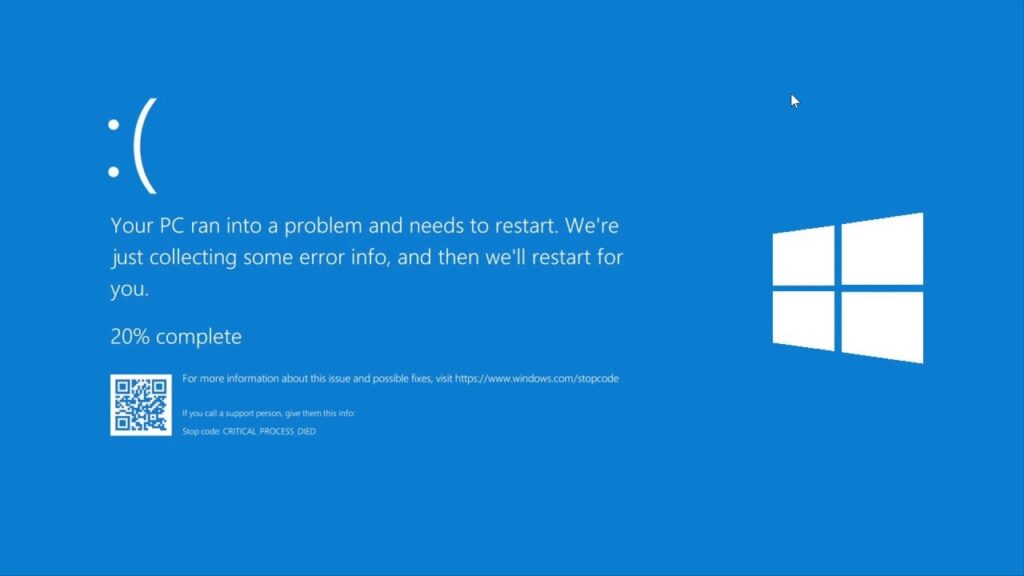
Note the error code displayed on the blue screen—it’s crucial information. Search that error code online; Microsoft’s documentation often explains what caused it and how to fix it.
Boot into Safe Mode by restarting and holding F8 (or use Windows Recovery). This loads Windows with minimal drivers and services. If you can boot into Safe Mode, try updating all your drivers in normal mode. Often a bad driver update is the cause.
Run Windows Memory Diagnostic (search in Start menu). Let it run a full test—a failed RAM test would explain BSOD errors.
If you’re getting constant BSOD errors even in Safe Mode, a clean Windows reinstall might be necessary. Back up important files first.
Your PC Suddenly Restarts or Shuts Down
Common Issues:
Power supply failure or wear
Overheating triggering automatic shutdown
Faulty RAM
Corrupted Windows updates
Driver problems
Quick Fixes:
Check power cable connections
Monitor CPU/GPU temperatures (HWiNFO)
Test RAM modules
Run Windows Troubleshooter
Update drivers
Solution:
Unexpected shutdowns often indicate PSU failure. If the power supply is dying, it can suddenly cut power to everything. Check that all power cables are firmly connected.
Overheating also causes this. Use HWiNFO (free utility) to monitor CPU and GPU temperatures. If temps spike above 90°C before shutdown, that’s your problem. Return to the cooling section of this guide.
Faulty RAM can cause unexplained shutdowns. Test using Windows Memory Diagnostic.
Sound Has Stopped Working
Common Issues:
Volume muted in system tray
Wrong audio output device selected
Outdated or corrupted audio drivers
Windows Audio service stopped
Hardware failure
Quick Fixes:
Check speaker icon for mute status
Select correct audio device
Reinstall audio drivers
Restart Windows Audio service
Check device physically
Solution:
Check the obvious first: is your volume muted? Look at the speaker icon in your system tray. Is it muted? Is your headphone or speaker volume turned down?
Make sure the right audio output device is selected. Click the speaker icon and you’ll see a list of audio devices. Sometimes Windows switches audio output after updates, especially if you plug in headphones regularly.
If that’s not it, your audio drivers might have died. Go to Device Manager, find your sound device, right-click, and reinstall drivers. Download latest audio drivers from your motherboard manufacturer’s website.
One more thing: Windows Audio service might have stopped. Search “Services” in Start menu, find Windows Audio, ensure it’s running, and set it to start automatically.
USB Devices Aren’t Recognized
Common Issues:
Faulty USB port
Outdated USB drivers
Device driver corruption
Physical damage to port
Device itself is faulty
Quick Fixes:
Try different USB port
Uninstall device in Device Manager
Update USB drivers
Restart computer
Test device on another PC
Solution:
Try a different USB port first. Some ports fail while others work fine. If a different port works, that port is dead—it happens.
If all ports fail for the same device, open Device Manager and look for devices with yellow warning symbols. Uninstall any you find and restart. Windows will reinstall drivers automatically.
Try the device on another computer if possible. If it works elsewhere, you have a driver or system issue. If it doesn’t work anywhere, the device itself is probably dead.
Check if any USB ports look physically damaged. Laptops especially suffer broken USB ports from normal wear and tear.
Final Maintenance Tips to Keep Your PC Healthy
Know What to Do:
Update Windows and drivers monthly (first Tuesday = Patch Tuesday)
Clean your PC twice yearly in dusty areas, once yearly otherwise
Keep antivirus protection active (Windows Defender is good)
Be careful what you install
Always shut down properly
When to Contact Variety Infotech:
There are times when troubleshooting isn’t the answer. If you see sparks, smell burning plastic, hear loud clicking from your hard drive, or see liquid damage—stop. Don’t turn it on again. Get it to a professional immediately.
Repeat failures are also a sign to seek professional help. If you’ve tried troubleshooting and problems keep coming back, you likely have a hardware failure. Attempting to fix intermittent hardware problems yourself often just delays the inevitable and sometimes makes it worse.
At Variety Infotech, we handle this stuff every single day. We’ll run proper diagnostics, identify exactly what’s wrong, and fix it the right way.
The Final Verdict
PC problems don’t have to stress you out. Most issues are just dust, loose cables, or old drivers. Spend an afternoon following the steps above and you’ll fix 80% of problems you’ll ever encounter.
For the weird ones, the intermittent ones, the ones that keep coming back—that’s where Variety Infotech – Where Tech Meets Excellence comes in. We’ve been solving computer problems and providing quality PC parts for years. Come see us when you need expert help, quality components, or just solid advice.
Your computer deserves to run smoothly. So do you.